

Download XnConvert – Free Batch Image Editor for Windows, Mac, Linux
Overview
XnConvert is a powerful, free batch image editor that lets you apply dozens of actions and filters to dozens—or even thousands—of photos with a single mouse click. Designed with a clean, tab‑driven interface, the program separates the workflow into logical steps: selecting source files, choosing actions, defining the output folder, tweaking advanced options, and finally reviewing the log. This layout makes it intuitive for beginners while still offering depth for power users. One of the strongest selling points is its unrivaled format support: XnConvert can read and write more than 500 graphic file formats, ranging from common JPEG, PNG, and GIF to obscure RAW camera files and vector‑based formats. This means you can convert, resize, or apply effects to virtually any image you encounter without needing additional plug‑ins.
The built‑in preview window, though modest in size, gives you a quick visual check before committing changes, saving time and avoiding mistakes. Actions include classic adjustments such as cropping, resizing, rotating, and format conversion, as well as more artistic filters like sepia, oil painting, emboss, and blur. Watermarking and text overlay are also supported, making XnConvert a handy tool for photographers who need to batch‑process client proofs or marketers preparing bulk assets for social media. Because the software is open‑source and regularly updated, it remains secure, reliable, and free of hidden costs. Whether you are a professional photographer, a graphic designer, or a casual user looking to streamline repetitive tasks, XnConvert offers a comprehensive set of features without the steep learning curve of more heavyweight editors.
Key Features
- Support for over 500 image formats, including RAW, TIFF, JPEG, PNG, GIF, BMP, and WebP.
- Batch processing engine that handles thousands of files in a single operation.
- More than 70 built‑in actions: resize, crop, rotate, flip, add borders, adjust brightness/contrast, levels, curves, and gamma.
- Creative filters and effects: blur, sharpen, emboss, oil painting, watercolor, sepia, negative, and color balance.
- Watermark and text overlay capabilities with customizable fonts, opacity, and positioning.
- Metadata handling: preserve, edit, or strip EXIF, IPTC, and XMP information.
- Multi‑threaded processing for faster performance on modern CPUs.
- Command‑line support for automation and integration into scripts.
- Portable version available—run directly from a USB stick without installation.
- Cross‑platform compatibility: native builds for Windows, macOS, and Linux.
These features are grouped under clearly labeled tabs—Input, Actions, Output, Options, and Log—so you can quickly navigate between selecting files, applying edits, and defining where the processed images should be saved. The “Actions” tab is especially powerful, allowing you to stack multiple operations in any order, creating complex workflows that would otherwise require manual repetition. For example, you can resize a batch of photos, apply a watermark, adjust the color balance, and finally convert them to a web‑optimized format—all in one click.
Installation & Usage Instructions
Step‑by‑Step Installation
Downloading XnConvert is straightforward. Visit the official XnConvert website, choose the appropriate installer for your operating system—Windows (exe), macOS (dmg), or Linux (AppImage/DEB/RPM)—and click the Download button. The installer is signed and free of adware, ensuring a secure installation process. On Windows, run the .exe file and follow the typical wizard: accept the license agreement, choose an installation folder, and decide whether to create a desktop shortcut. macOS users drag the XnConvert icon into the Applications folder, while Linux users can either use their package manager (e.g., sudo apt install xnconvert) or run the portable AppImage directly after granting execution permissions (chmod +x XnConvert‑*.AppImage).
Launching the Application
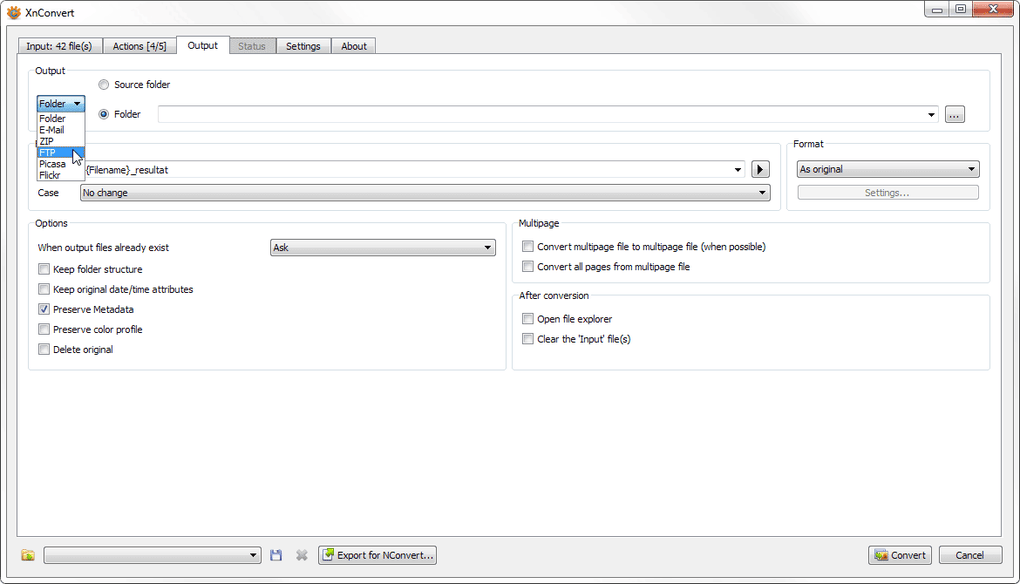
After installation, launch XnConvert from the start menu, dock, or terminal. The main window presents five horizontal tabs:
- Input – Click “Add files” or “Add folder” to import images. You can filter by format or use the built‑in search to locate specific files.
- Actions – Select from the extensive list of actions. Drag and drop actions to reorder them; each action displays its parameters on the right‑hand side.
- Output – Choose the destination folder, output format, and naming pattern (e.g., original_name_01). Advanced options let you set JPEG quality, PNG compression level, or embed color profiles.
- Options – Fine‑tune processing threads, enable “keep original timestamps,” or activate “overwrite existing files.”
- Log – Review a detailed log after the batch run, showing any errors or warnings.
To start a batch job, configure the desired actions, then press the green “Convert” button. A progress bar appears, and the preview pane updates in real time for the first image, allowing you to verify the outcome before the full batch runs. If you need to adjust parameters, you can pause the operation, edit the action, and resume without restarting.
Tips for Efficient Workflows
- Save frequently used action chains as presets for one‑click reuse.
- Use the command‑line mode (e.g.,
xnconvert -i *.jpg -a "Resize=800x600" -o out/) to integrate XnConvert into automated scripts. - Take advantage of the “Portable” version on USB drives when you need to process images on a computer without admin rights.
Compatibility and System Requirements
XnConvert runs natively on the three major desktop operating systems:
- Windows: Windows 7, 8, 8.1, 10, and 11 (both 32‑bit and 64‑bit). Requires .NET Framework 4.5 or later, which is bundled with the installer.
- macOS: macOS 10.12 (Sierra) and later, including Apple Silicon (M1/M2) via Rosetta 2 translation.
- Linux: Any modern distribution with GLib 2.0, GTK+ 3, and standard X11 libraries. Packages are available for Ubuntu/Debian, Fedora, openSUSE, and Arch.
Hardware requirements are modest: a dual‑core CPU, 2 GB RAM, and at least 100 MB of free disk space for the application itself. Because XnConvert leverages multi‑threading, performance scales with additional cores, making it especially fast on modern quad‑core or higher CPUs. For large batches (tens of thousands of files), having at least 8 GB of RAM and an SSD for the source and destination folders will significantly reduce processing time.
The software is fully localized into more than 30 languages, including English, Spanish, German, French, Chinese, Japanese, and Russian, making it accessible to a global audience. It also respects system dark‑mode settings on macOS and Windows 10/11, automatically adapting its UI colors for a comfortable visual experience.
Pros, Cons & Frequently Asked Questions
Pros
- Free and open‑source with regular security updates.
- Unmatched support for over 500 image formats.
- Robust batch engine capable of handling thousands of files.
- Extensive action list that covers both basic edits and artistic effects.
- Cross‑platform availability (Windows, macOS, Linux).
- Portable version for use without installation.
- Command‑line interface for automation.
Cons
- Preview window is relatively small and cannot be resized.
- No native support for non‑raster formats like SVG editing.
- Advanced color management (e.g., ICC profiles) is limited.
- Learning curve for complex action chains may be steep for absolute beginners.
FAQ
Can XnConvert handle RAW camera files?
Yes. XnConvert supports a wide range of RAW formats (CR2, NEF, ARW, RAF, etc.) through its integration with the libraw library, allowing you to convert, resize, and apply basic adjustments without needing a separate RAW processor.
Is there a way to preserve EXIF metadata after batch processing?
Absolutely. In the Output tab, enable the “Preserve metadata” option. You can also choose to strip specific tags or embed new metadata if required.
Can I use XnConvert on a headless server?
Yes. The command‑line version works without a graphical interface, making it suitable for server‑side automation scripts or CI pipelines.
What is the difference between the installer and the portable version?
The installer writes files to the system registry and creates shortcuts, while the portable version runs directly from a folder or USB stick without modifying the host system. Both share the same feature set.
Is XnConvert safe to download and free of malware?
Yes. The software is open‑source, digitally signed, and distributed from the official XnConvert website. Regular updates address security patches, and there are no bundled adware or hidden fees.
Review Summary
Overall Rating: 4.6/5
XnConvert delivers a professional‑grade batch processing experience without the price tag of commercial editors. Its extensive format support and rich action library make it indispensable for photographers and designers who need to streamline repetitive tasks. While the UI could benefit from a larger preview pane, the software’s speed, stability, and cross‑platform nature outweigh these minor drawbacks.
Conclusion & Call to Action
If you’re looking for a free, secure, and feature‑rich batch image editor that works across Windows, macOS, and Linux, XnConvert is an excellent choice. Its ability to process thousands of files in one go, combined with a massive set of actions—from basic resizing to artistic filters—means you can replace multiple single‑purpose tools with a single, lightweight application. Download XnConvert today, set up your first batch, and experience how much time you can save on routine image tasks. Remember to bookmark the official site for updates, and consider contributing to the open‑source project if you find the tool valuable.
Download XnConvert now and start converting, editing, and enhancing your images with confidence.